Huvon Work Encounter shown with fictional demo data. Follow the Huvon Scribe guide for Chrome extension recording and EHR writing.HOW SCRIBE ACCESS WORKS
Get Huvon Scribe for Chrome
Sign in to the Huvon Scribe extension with your clinician account. Your clinic may also provide Scribe through the Huvon Work Encounter workspace.
01SCRIBE IN Huvon WORK
Open your clinic workspace.
Clinic invitations and roles govern access to the Work Encounter screen. Keep the patient, visit, and reviewed note together in the workspace assigned to you.
Confirm the intended patient in each product
Ask your clinic about the available connection
Verify the saved result in the EHR
02Huvon SCRIBE / CHROME
Use the extension independently.
Use your own clinician login and subscription to capture, review, and complete documentation in the EHR. Follow the guide to Write note, verify the saved fields and decide when to Lock note.
The current guide demonstrates eClinicalWorks. Confirm availability for your clinic’s EHR during onboarding. Use your computer microphone by default, or pair a phone while keeping the desktop on the intended Progress Note.
No Huvon Work clinic invitation required
Read the installed extension’s current temporary-data notice
Invited clinicians receive the clinical access assigned to them. Only clinicians designated as Clinic Admin can see the complete Huvon Work menu, including intake, scheduling, and operational work.
Encounter access for invited clinicians
Full menu access for Clinic Admin clinicians
Clinic-managed invitation and role assignment
BUILT FOR THE CLINICAL WORKDAY
Capture clearly. Review carefully. Save deliberately.
The transcript supports the visit.
Review the transcript while documenting. Read the installed extension’s data notice; clinic records follow the clinic’s retention policies.
The draft keeps its context.
Prior records and clinician cues remain visible while the structured note is prepared.
The clinician controls delivery.
The draft is reviewed and edited before it moves into the EHR workflow.
SCRIBE IN Huvon WORK
From recording to a reviewed EHR note.
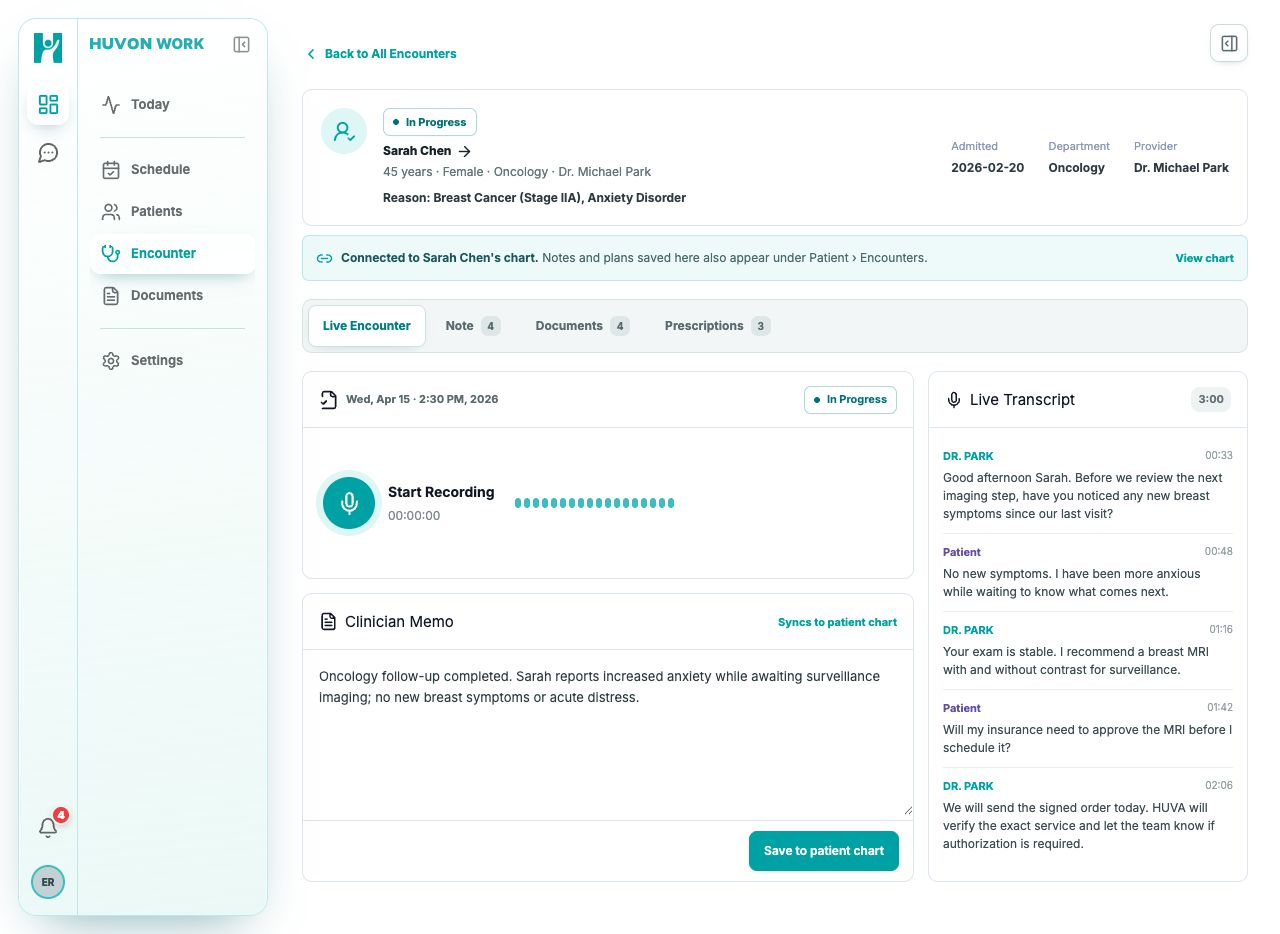
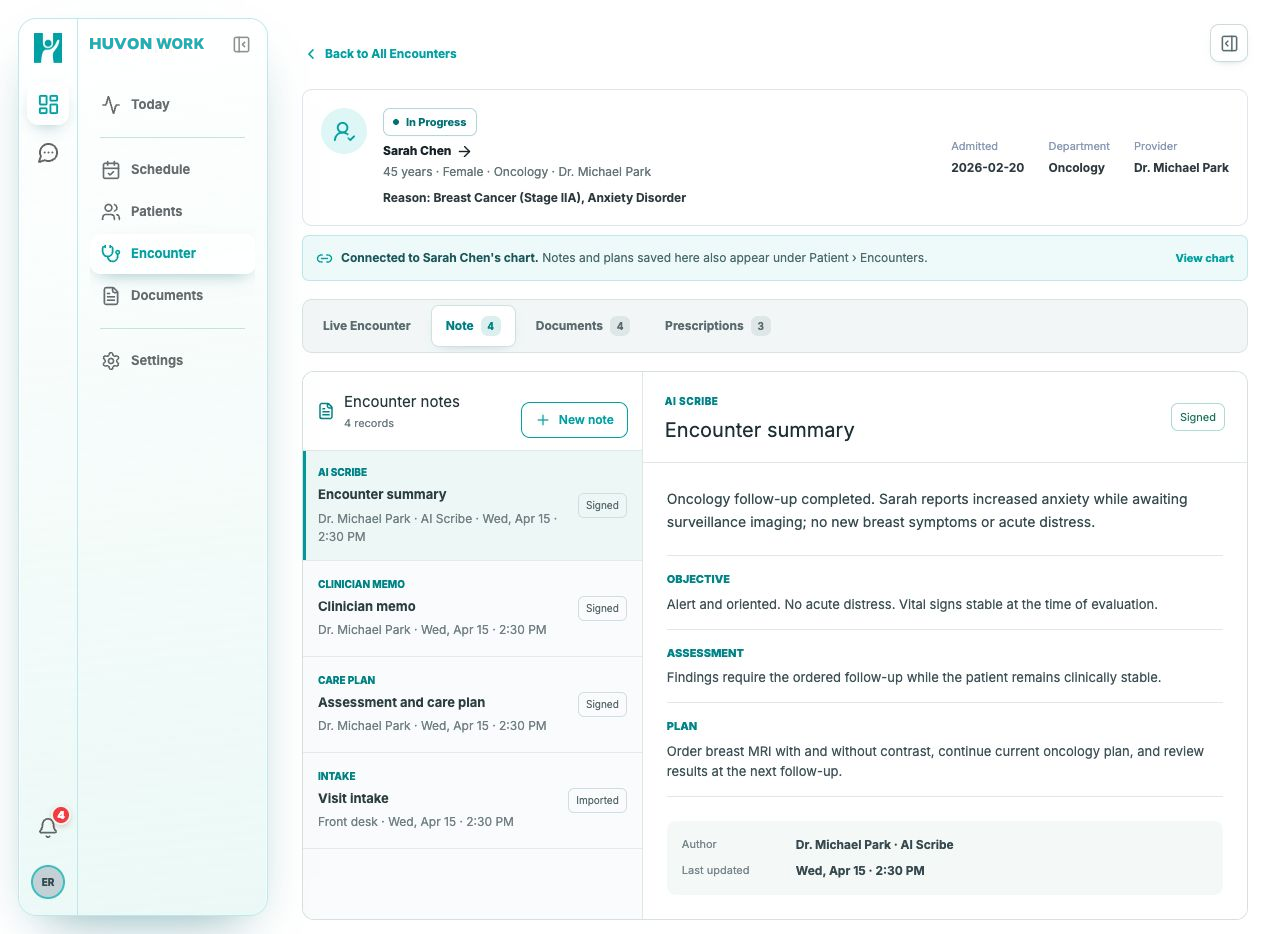
The screens below show the Work Encounter workflow. For Chrome extension recording and EHR writing, follow the Huvon Scribe guide to record, review, write the note and verify the saved EHR fields.
01CAPTURE THE VISIT
Keep the visit in context.
Start with the intended patient and encounter. Keep the transcript and clinician memo connected to the visit.
Live transcript with speaker context
Visit identity stays attached
Clinician-controlled pause and end controls
02REVIEW IN CONTEXT
The transcript, draft, and patient context stay with the encounter.
Huvon prepares a structured draft while the clinician retains the source, edits the note, and decides when it is complete.
Patient and visit stay matched
Source context remains visible
Clinician editing and approval
03REVIEW AND EHR PUSH
The clinician approves the note, then pushes it to the EHR.
The clinician approves the note, then uses EHR Push or completes documentation within the connected EHR workflow.
Structured SOAP sections
Clinician editing and approval
Visible EHR Push status
01PATIENT-LINKED ENCOUNTER
Open the received patient, record with consent, and keep the transcript and clinician memo tied to the Encounter.
02CLINICIAN REVIEW
Review the structured fields, edit the note, and sign it before any EHR delivery begins.
EHR-CONNECTED DELIVERY
The note moves forward only after the clinician is ready.
In Huvon Scribe, the clinician reviews the draft and code decisions, selects Write note and verifies the saved result before finalizing.
01SIGN INUse the clinician’s own Huvon Scribe account.
Open the intended patient’s Progress Note and sign in to the Huvon Scribe extension.
02CAPTUREKeep the visit and its source context together.
The conversation, patient identity, and relevant prior context remain attached while Huvon prepares the structured note.
03REVIEWEdit and approve the clinical note.
The clinician checks the structured fields, makes any needed changes, and chooses when the note is complete.
04EHR PUSHComplete the approved note in the connected EHR.
Huvon supports EHR Push and documentation within the clinician’s existing EHR workflow. Connection availability is confirmed during onboarding.
Clinician approval is the boundary.
While Huvon Scribe writes, keep the current EHR screen open and wait before clicking, typing or navigating.
CLINICAL AND ACCESS CONTROL
Huvon prepares the draft. The clinician and clinic control what opens next.
Consent, note approval, clinic invitations, and role permissions stay explicit across the independent and connected Scribe workflows.
01
Consent and note approval remain visible
The clinician controls recording, editing, signing, and the final EHR Push.
02
Clinic access starts with an invitation
A clinic’s Front Desk invites the clinician before patient-linked Encounters appear in Huvon Work.
03
Full menus require the Clinic Admin role
Invited clinicians see their assigned clinical surfaces. Only Clinic Admin clinicians see intake, scheduling, and the complete operational menu.
SCRIBE IN Huvon WORK
Keep the visit and the note together.
Sign in to the workspace your clinic has assigned to you. Clinic invitations and role permissions determine your access.

 , Encounter